 Fjernbetjening
Samsung TV remote not working: what to do
Start with the batteries, or charge the remote if it's a SolarCell. Then pair it again: point it at the TV and hold Return and Play/Pause together for 3 seconds. Still nothing? Reset the remote, unplug the TV for a minute, and use your phone's camera to see whether the remote is sending a signal at all.
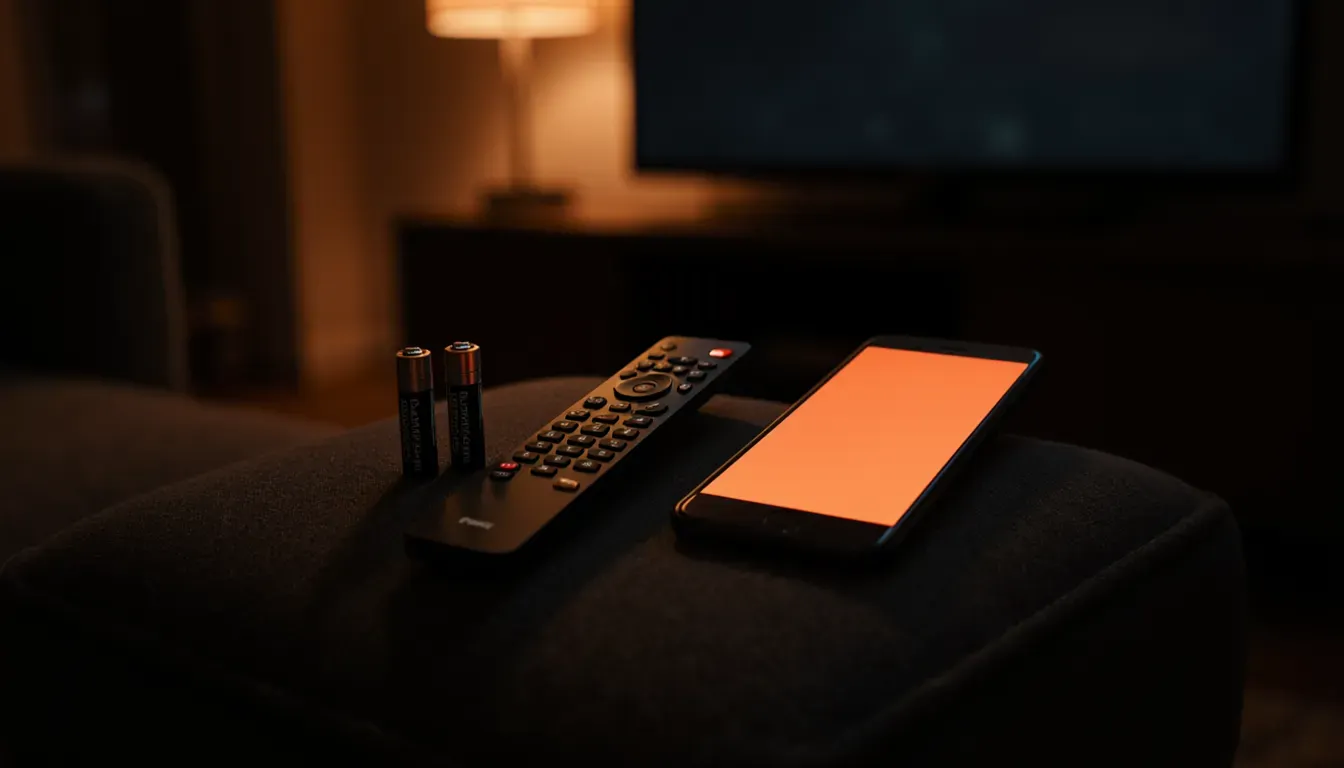
Five checks, in this order
- 1BatteriesFresh AA or AAA, or charge a SolarCell remote.
- 2Pair againReturn + Play/Pause for 3 seconds, close to the TV.
- 3ResetSolarCell: Return + Enter for 10 seconds.
- 4Camera testHold Power in front of the phone camera. Light means it's sending.
- 5Restart the TVUnplug for a minute, then pair again.
Most dead Samsung remotes come back at step 1 or 2. Each step below says what to do and what it tells you.
1. Change the batteries or charge it
Samsung's remotes take two AA or two AAA batteries, depending on the model. Put in fresh ones, the right way round.
A SolarCell remote (selected TVs from 2021) has a built-in battery instead. Leave it face down in daylight or plug in a USB-C cable. Samsung says a full charge lasts up to two years. On a new one, peel off the plastic film first.
The TV shows how much charge is left. On 2025 TVs: Settings › All Settings › General & Privacy › Remote Control. On older ones: Settings › All Settings › General and Privacy › Power and Energy Saving › Available Remote Battery. When the battery runs very low, the light on a SolarCell remote flashes for about 3 seconds and the remote stops working until you reset it (step 3).
2. Pair the remote with the TV again
A Smart Remote or SolarCell remote talks to the TV over Bluetooth, and it can lose the pairing, for example after a power cut. To pair it again:
- Turn on the TV.
- Point the remote at the sensor, at the bottom right or bottom centre of the TV, from about 30 cm away.
- Press and hold Return and Play/Pause together for 3 seconds, until the TV says the remote is connected. (Samsung's US troubleshooting page says 5 seconds, so keep holding if nothing happens.)
A remote pairs with one TV at a time. A standard Samsung remote, with separate Play and Pause buttons, uses infrared and needs no pairing. Samsung's pairing guide
3. Reset the remote
- SolarCell remote (2021 and newer): hold Return and Enter for 10 seconds, then pair it again (step 2).
- Remote with batteries: take the batteries out, hold Power for 8 seconds, and put them back in.
The combination differs between model years, so if neither works, look up your remote's model number (on the back or in the battery compartment) on Samsung's support site.
4. Test it with your phone camera
The remote's infrared light is invisible to you but not to a camera. Open the camera on your phone, point the remote at the lens and hold Power. On an iPhone, use the front camera: the back cameras may filter infrared out.
- You see a light flicker: the remote is sending. The problem is the pairing (step 2) or the TV (step 5).
- No light: try fresh batteries once more. If it's still dark, the remote is broken.
Smart Remotes also use infrared for the basic buttons, so the test works on them too. Samsung's troubleshooting page
5. Restart the TV and clear the sensor
Unplug the TV from the wall, wait a minute, plug it back in and pair the remote again. That also clears small glitches in the TV's own software.
- Move anything standing in front of the sensor: a soundbar, a photo frame, a plant.
- Strong sunlight or bright energy-saving lamps on the sensor can drown out the signal.
- On some 2022 TVs, the SmartThings app can block the remote. Samsung's workaround: turn the TV off and on with the button on the TV, and turn off device notifications in SmartThings.
Still dead? Control the TV without it
The TV has a button of its own that turns it on and opens a small menu: here's where the button is on a Samsung TV. In the US, Samsung sells original remotes through samsungparts.com, and an older Samsung infrared remote also handles the basics.
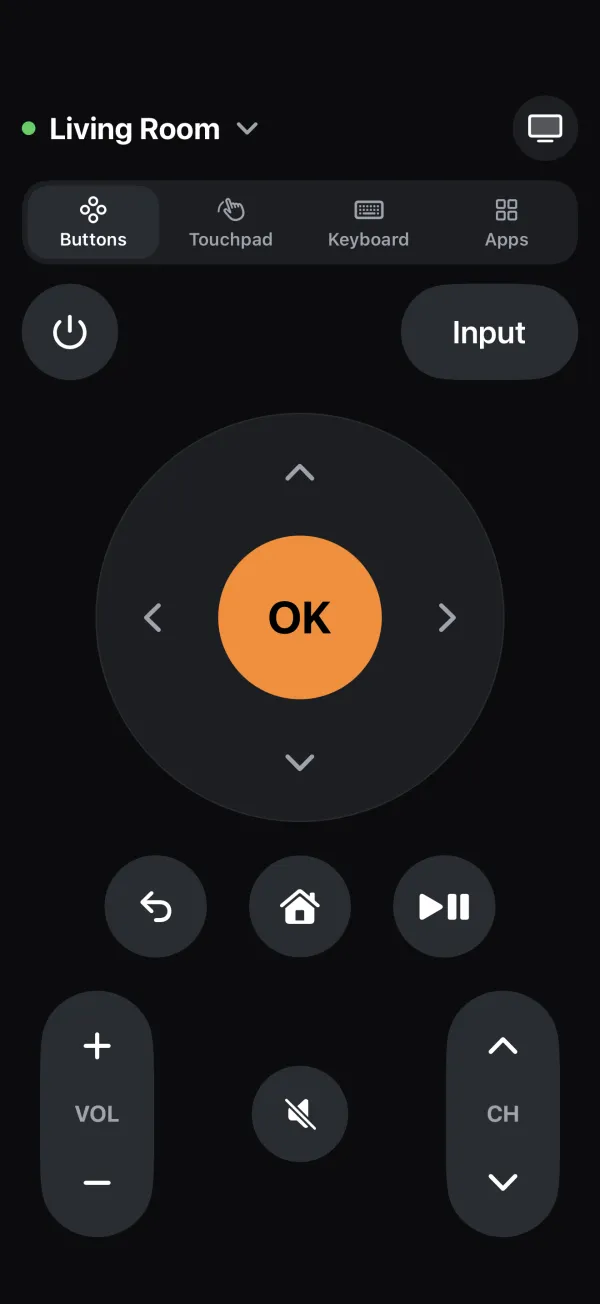
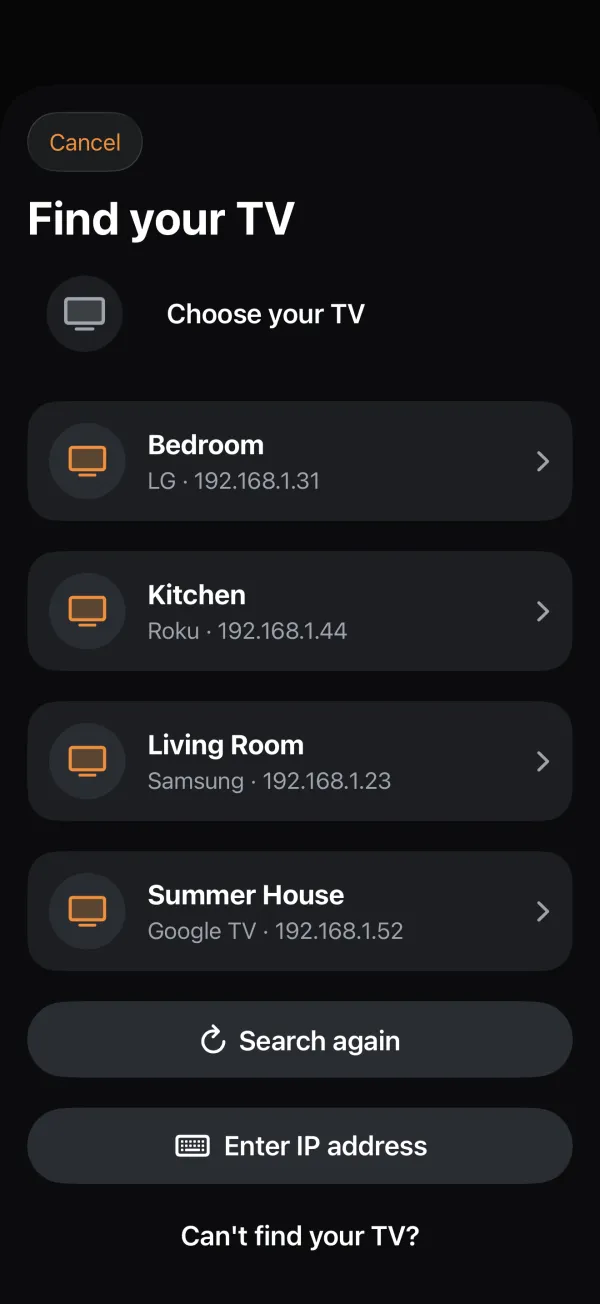
Until then, your iPhone can be the remote. Samsung's own SmartThings app does it with a Samsung account (how SmartThings compares). I made Fjernbetjening for exactly this: it finds the TV on your Wi-Fi, needs no account, and works with Samsung TVs from 2016 and newer. It costs $1.99, once.
 123
 4
- 1Turn the TV on or off
- 2OK and the arrows, like on the remote
- 3Volume, mute and channels
- 4The TVs on your Wi-Fi, found automatically
The first time the app connects, the TV asks on screen whether to allow it. If the remote is dead, use the TV's own button to move to Allow: press to move, hold to choose. Your iPhone can't find the TV? See Samsung TV not found.
Download on the App Store